
M3U Playlist Player Windows 11: 3 Easy Steps to Watch
Need an M3U playlist player Windows 11 can run? GoTo Player is one. The Microsoft Store has it, and it is free there. Add your own playlist link and watch on your PC in three easy steps.
Your M3U playlist is one web link
An M3U playlist is your playlist as one web link. You get it from your provider, or from your own source.
A link alone shows nothing. You need an app that opens it and shows what is inside.
GoTo Player is that app: an M3U playlist player Windows 11 and Windows 10 both run. It is a player only. No playlist comes with it, so you bring yours.
M3U playlist player Windows 11: the 3 steps
You need two things: a PC with Windows 10 or 11, and your M3U link.
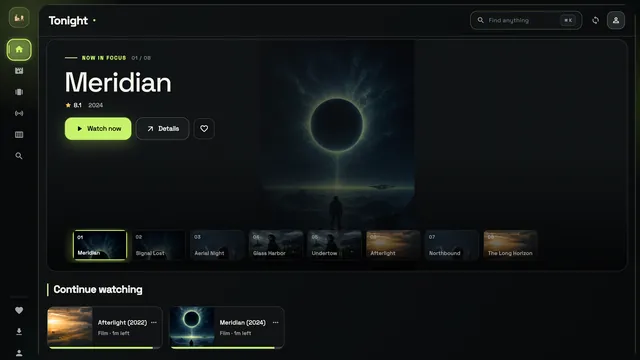
- Get GoTo Player. Open its Microsoft Store page and install the app. It costs nothing.
- Add your link. Start the app. On the welcome screen, find the button Connect a playlist URL instead. Choose it and paste your link in.
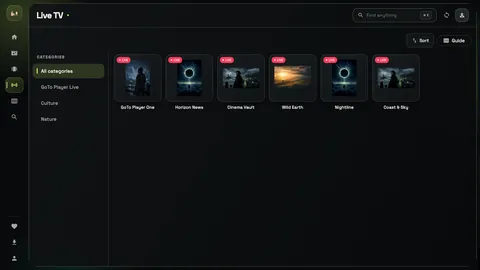
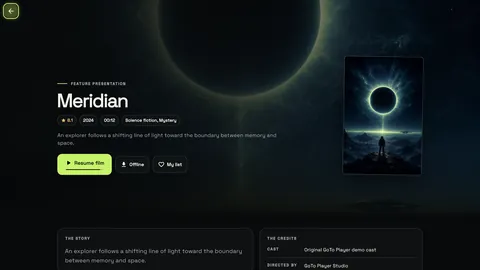
- Watch. Pick Live TV, Movies or Series. You see what is in your own link. The TV guide comes from your source. It tells you what is playing now and what comes after.
That is all. Your M3U playlist player Windows 11 setup is done.
For Windows 10 and 11
Get GoTo Player for your PC
The Windows app is free.

What else the Windows app does
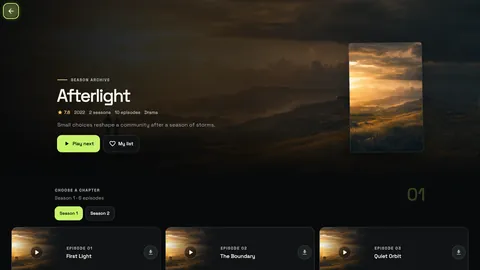
This M3U playlist player Windows 11 app does more than open a link.
Big-screen layout for your PC.
Fast search to find a title.
Favorites for the titles you like.
Continue watching from where you stopped.
Subtitles and audio tracks in the player.
Offline downloads, where your source allows it.
No ads in the app. Your logins are stored encrypted on your device.
If nothing loads
Does the app stay empty? Check three things, in this order.
- Check the link. Copy the whole link again and paste it.
- Check the internet on your PC. Open any website to test it.
- Ask your provider. Your provider can tell you if the link is still active.
Still stuck? Visit Support.
Try the demo first
No link yet? The welcome screen has a button named Explore offline demo. It opens the app with sample titles. No account needed.
Quick questions
Is this M3U playlist player Windows 11 only?
No. GoTo Player for Windows works on Windows 10 and Windows 11. It is the same app on both.
I have a login, not a link. Can I use it?
Yes. That kind of login is called Xtream Codes. It has three parts. Our Xtream Codes player guide shows where to type it.
Is GoTo Player on my TV or phone too?
Yes. It is on Fire TV with Fire OS, Android TV and Google TV. It is on Android phones and tablets, iPhone and iPad too. On a TV, open the Downloader app and type 1129312. The download page has every step.